
Let a product support engineer help you by connecting to your groov EPIC...it's FREE!
If you hit a roadblock with your automation project, the OptoSupport Remote Support Service (OptoRSS) lets a Product Support engineer connect directly to your groov EPIC to help you troubleshoot in real time.
It’s FREE and you can use the OptoRSS feature as many times as needed.
Learn how to take advantage of this product support option.
You control the access
OptoRSS requires your permission. Our Product Support engineers can’t access your groov EPIC processor without it. They can only log in during a session that’s initiated by you.
When should you use OptoRSS?
OptoRSS isn't the first step for every support ticket. After you contact Product Support, you can use this option if you and the support engineer decide that analyzing the system together speeds up troubleshooting. The next step is to schedule a time to connect to the EPIC.
Before your Opto 22 session, you need to verify two things:
- Your groov EPIC processor has an active internet connection
- Your network firewall or router allows outbound connections through port 555
How an OptoRSS session works
You’ll initiate a session from the groov Manage home page (Info and Help > OptoSupport RSS).
Here’s what you can expect during a typical remote session:
- Initiate the Call: At your scheduled time, initiate a phone call with your Opto Support team member.
- Provide the serial number listed on your OptoSupport RSS page so they can prepare the connection.
- Create the Connection: When instructed, click the Create RSC button.

- Accept the Permission and Release Agreement. Your groov EPIC then displays a status message as it builds the secure environment, eventually showing the status as "Connected."
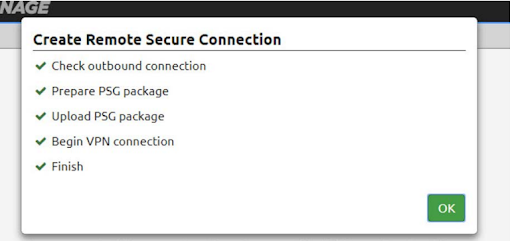
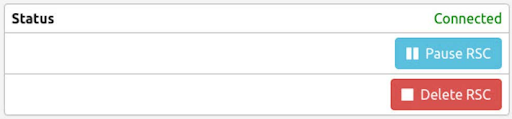
- Collaborate and Troubleshoot: With the connection established, you have options. You can stay on the phone and discuss the issue, or you can agree on an action plan and hang up while they continue diagnosing your groov processor.
- Pause if Necessary: If troubleshooting takes longer than expected or needs to carry over to the next day, you can pause it to suspend communication while preserving the connection details. When you’re both ready, resume the connection to continue troubleshooting.
- End the Session: Once the problem is solved, simply click Delete RSC. This button completely erases the connection data and terminates access to your EPIC.

Need remote help again? Contact Product Support to report a new support ticket.
OptoRSS is a reusable troubleshooting tool designed to get you back up quickly. Have you tried OptoRSS yet? Let us know how it worked for you in the comments below.